User Manual - Dual Tracker CardUpdated 3 months ago
The Dual Tracker Card helps you keep track of your valuables using either Apple Find My or Google Find Hub.
⚠️ Important: The Dual Tracker Card can only be connected to one network at a time. You can use either Apple Find My or Google Find Hub, but not both simultaneously. To switch networks, you'll need to factory reset the Dual Tracker Card.
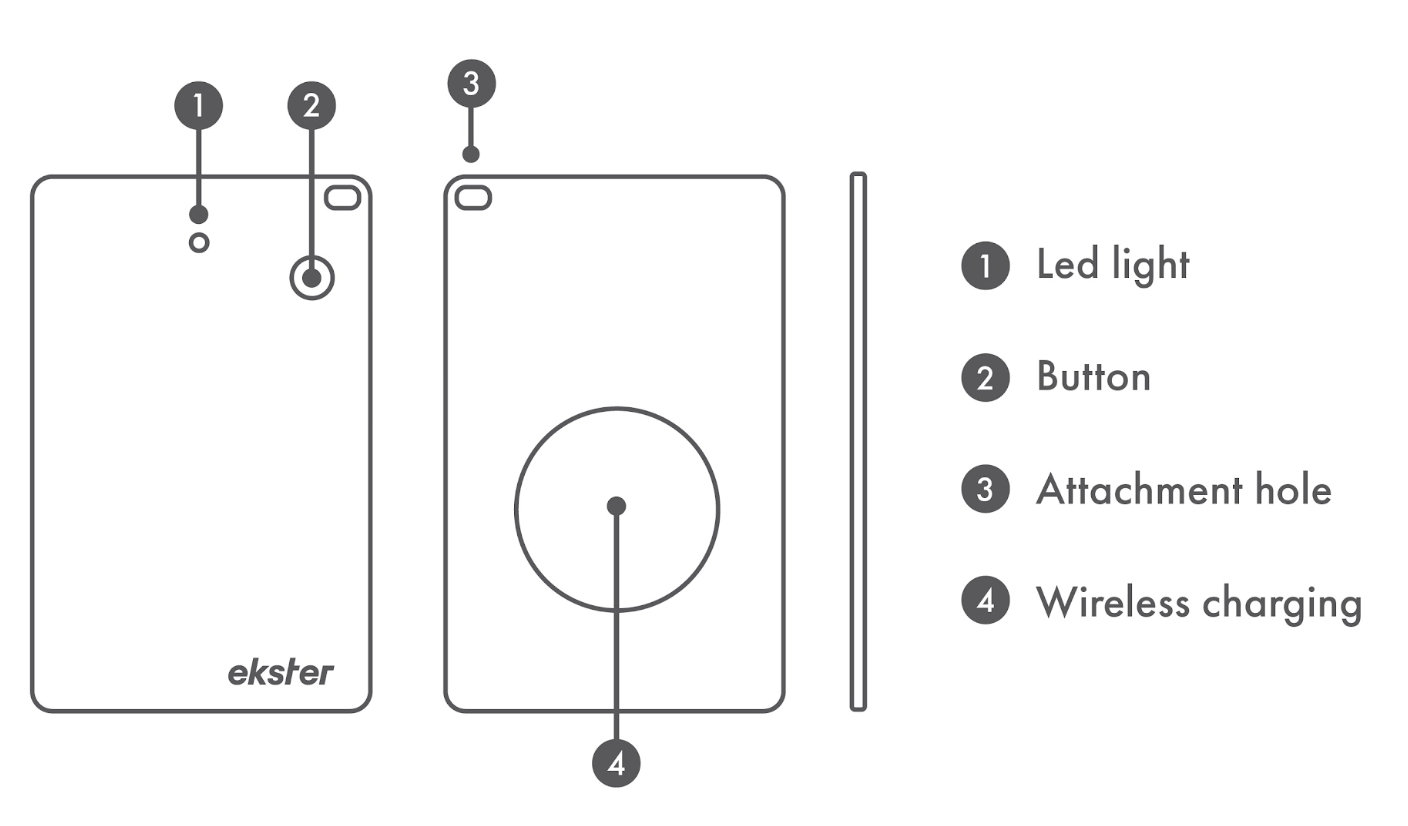
Getting started
Before you start, make sure Bluetooth is enabled and your iPhone has an internet connection through Wi-Fi or cellular data.
Place the Dual Tracker Card next to your iOS device.
Press the button once to activate it.
You'll hear a beep when activation is successful.
Open the Find My app.
Tap Items.
Tap Add Item.
Select Other Supported Item.
If you've previously added items, tap the + button first, then select Add Other Item.
Once the Dual Tracker Card is detected, follow the on-screen instructions to complete setup.
Before you start, make sure Bluetooth is enabled and your Android device has an internet connection. Your device should also be awake and unlocked.
Place the Dual Tracker Card near your Android device.
Press the button once to activate it.
You'll hear a beep when activation is successful.
Wait for the half-screen notification to appear.
Follow the on-screen instructions to add the Dual Tracker Card to the Find Hub app.
Didn't receive the notification?
Disable and re-enable the Dual Tracker Card. The notification should appear again.
If the Dual Tracker Card enters sleep mode after 10 minutes without being paired, press the button once to re-enable it. The notification should appear again.
Once you've added the Dual Tracker Card to Apple Find My or Google Find Hub, attach it to the item you want to keep track of.
You can then use the corresponding app to locate both the Dual Tracker Card and the item it's attached to.
Using your Dual Tracker Card
Open the Find My or Find Hub app.
Select your Dual Tracker Card from the list.
Tap Play Sound.
The Dual Tracker Card will beep to help you locate it.
Once you've found it, stop the sound through the app or press the button on the Dual Tracker Card once.
Open the Find My or Find Hub app.
Select your Dual Tracker Card from the list.
Its location will appear on the map, along with a timestamp showing when it was last located.
Press the button once.
You'll hear a confirmation beep when the Dual Tracker Card is enabled.
Press and hold the button for 4 seconds.
You'll hear one beep, followed by two beeps and then three beeps.
Release the button after the prompts.
The white indicator light will flash once for each prompt.
Troubleshooting
If you miss the Find Hub notification:
Option 1: Disable and re-enable the Dual Tracker Card. The notification should appear again.
Option 2: If the Dual Tracker Card has entered sleep mode after 10 minutes without being paired, press the button once to re-enable it. The notification should appear again.
If the Dual Tracker Card isn't paired within 5 minutes, you'll hear a notification sound.
A factory reset allows you to connect the Dual Tracker Card to a different Apple or Google account. It is also required if you want to switch between Apple Find My and Google Find Hub.
Before resetting, remove the Dual Tracker Card from the Find My or Find Hub app.
Then:
Press the button three times quickly.
On the fourth press, continue holding the button for 1 second.
Release the button after you hear a long beep.
Important: If you're linking the Dual Tracker Card to a new Apple account, you must also remove it from the previous Apple account on your iOS device.
Features
This feature is available only with Apple Find My.
Open the Find My app.
Select your Dual Tracker Card.
Under Notifications, enable Notify When Left Behind.
You'll receive a notification if you leave your Dual Tracker Card behind and it goes out of Bluetooth range of your iOS device.
This feature is available only with Apple Find My.
Open the Find My app.
Select your Dual Tracker Card.
Under Notifications, enable Notify When Found.
You'll receive a notification with the Dual Tracker Card's location when it is detected by another device on the Apple Find My network.
Note: Notify When Found can only be activated when your Dual Tracker Card is outside the Bluetooth range of your iOS device.
This feature is available only with Google Find Hub.
Open the Find Hub app.
Select your Dual Tracker Card.
Tap Mark as lost.
Follow the on-screen instructions to enter your contact information.
You'll be notified if the Find Hub network locates your lost Dual Tracker Card.
Charging & compatibility
How do I charge my Dual Tracker Card?
The Dual Tracker Card supports wireless charging.
The indicator light is white while charging.
The indicator light turns green when fully charged.
Battery life is up to 6–7 months.
Which devices are compatible?
The Dual Tracker Card supports:
iOS 14.5 or later
iPadOS 14.5 or later
macOS 12.5 or later
Android 9 or later
Specifications
| Specification | Details |
|---|---|
| Bluetooth | Version 5.3 |
| Dimensions | 85.6 × 54 × 1.7 mm |
| Weight | 14 g |
| Battery | 3.7V 155mAh |
| Frequency | 2400–2483.5 MHz |
| Charging | Wireless |
| Battery life | Up to 6–7 months |